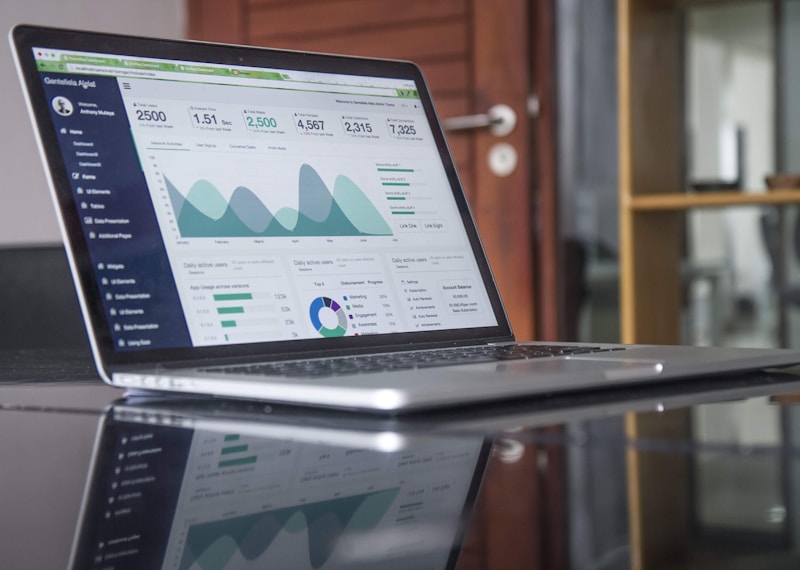
The first time I edited a 4K timeline on a MacBook Pro, I was skeptical. Laptops had always felt inadequate for serious video work—rendering times stretched into hours, playback stuttered constantly, and export times made coffee breaks mandatory. Apple silicon changed everything. My M1 MacBook Pro handled 4K RAW playback that would bring my old Intel machine to its knees. The MacBook Pro has genuinely become a professional video editing platform.
That said, video editing demands significant resources, and not every MacBook Pro configuration handles every workflow equally well. Understanding what you need—before spending money—is crucial. This guide walks through everything from hardware selection to software configuration, based on years of editing on MacBooks and setting up mobile workstations for video professionals.
Choosing the Right MacBook Pro Configuration
Video editing is resource-intensive across CPU, GPU, memory, and storage. Each component affects different aspects of the editing experience. Matching your configuration to your actual workflow prevents frustration and wasted money.

CPU Requirements
The processor handles timeline scrubbing, effect processing, and export. For 1080p H.264 editing, any M3 chip suffices. For 4K RAW (RED, BRAW, ProRes RAW), higher core counts help significantly. M3 Pro with 11-12 cores handles most professional 4K workflows adequately. M3 Max with 14-16 cores becomes necessary for 8K editing or complex real-time color grading.
Memory: The Critical Component
Unified memory shared between CPU and GPU is the primary constraint for video editing. A 16GB MacBook Pro will struggle with 4K RAW timelines, constantly swapping to SSD and slowing everything. For professional work, 32GB minimum is my recommendation—36-64GB if you're working with 8K or complex multi-layer timelines. Memory cannot be added later, so configure generously at purchase.
The math is simple: a single frame of 4K RED RAW is approximately 1MB. A 10-minute timeline at 24fps is 14,400 frames, or 14.4GB just for the RAW data sitting in memory during playback. Layer multiple streams, add color correction, and memory requirements multiply quickly.
Storage: Speed vs. Capacity
Video files are enormous, and storage speed directly affects editing performance. The internal SSD in M3 MacBook Pros delivers 3GB/s+ read speeds—adequate for 4K editing directly from internal storage for most codecs. For RAW formats exceeding internal bandwidth (multiple streams of 4K ProRes 4444, for example), external NVMe storage becomes necessary.
For most editors, 1TB internal storage handles the operating system, applications, active projects, and proxy files, while large archives live on external storage. The cost difference between 512GB and 1TB internal is approximately $200—worth it for project workspace alone.
Essential External Hardware
External Storage for Video
Fast external storage is non-negotiable for professional video work. The Samsung T7 series offers 1TB capacity with 1050MB/s speeds—sufficient for single-stream 4K editing directly from the drive. For higher demands, Thunderbolt 3 NVMe enclosures with drives like the Samsung 980 Pro deliver 2800MB/s speeds for multiple 4K streams or 8K workflows.
My recommendation: invest in at least one fast external SSD for active projects. A 2TB Samsung T7 Shield provides sufficient capacity for several major projects while maintaining performance that internal storage approaches.
External Display for Color Accuracy
The built-in MacBook Pro display is excellent but limited in size for professional editing. External displays serve two purposes: more screen real estate for timeline and tools, and color-critical reference monitors for color grading decisions.

For timeline and tools, any quality 4K display works. For color grading, consider displays with 100% DCI-P3 coverage and hardware calibration capability. The LG UltraFine 5K integrates with Mac and provides excellent color accuracy. The BenQ PD3220U offers 100% sRGB and 95% DCI-P3 with precise calibration options.
Audio Monitoring
Good audio matters in video. The MacBook Pro's built-in speakers work for rough cuts, but professional work requires accurate monitoring. The Audio-Technica ATH-M50x headphones provide neutral frequency response for mixing. For speaker-based monitoring, the Presonus Eris E3.5 monitors offer accurate sound in a compact form factor suitable for mobile editing.
Software Selection
Final Cut Pro: The Mac-Native Choice
Apple's Final Cut Pro represents the best integration between software and hardware on Mac. Optimizations throughout macOS and Apple silicon make Final Cut Pro extraordinarily responsive. The magnetic timeline reduces editing tedium. Compressor for export and Motion for graphics complete the suite.
For documentary and narrative editors, Final Cut Pro's efficiency advantages are significant. The ability to edit 4K on a 16-inch MacBook Pro without proxies, combined with fast exports, transforms mobile editing from compromise to legitimate workflow.
Adobe Premiere Pro
Premiere Pro remains the industry standard for broadcast, commercial, and feature film work. Its cross-platform compatibility matters in collaborative environments where editors might use Windows. The integration with After Effects for VFX and Audition for audio creates a comprehensive suite.
Premiere Pro performs well on Apple silicon, though optimizations aren't as deep as Final Cut Pro. For projects requiring extensive third-party plugins, Premiere's broader ecosystem provides more options.
DaVinci Resolve
DaVinci Resolve offers professional grading, editing, and audio in a single application. Its color grading tools exceed any competitor—the free version includes nearly all color features that made DaVinci the standard in color grading suites. Studio version adds noise reduction, FaceID refinement, and other advanced features.
Resolve's performance on Apple silicon is excellent, and its cross-platform nature provides flexibility. Many professional colorists use Resolve as their primary tool while other editors work in Premiere or FCP—Resolve handles the finishing pass regardless of editorial platform.
Optimizing Your Editing Workflow
Proxy Workflows
Despite Apple silicon's power, complex timelines benefit from proxy editing. Create lower-resolution proxies (720p or 540p) for editing, then relink to full-resolution media for export. This approach works particularly well with RAW formats on smaller MacBook Pro configurations.
Final Cut Pro handles proxy creation automatically with the "Create Optimized Media" function. Premiere Pro requires manual proxy workflow setup but offers excellent proxy playback once configured. DaVinci Resolve includes comprehensive proxy tools.
Codec Selection
The codec you shoot in determines editing demands. H.264 and HEVC (H.265) are compressed for delivery, requiring significant CPU power for decoding during playback. ProRes and DNxHR are designed for editing, offering better real-time performance at the cost of larger file sizes.
For best results, shoot in your camera's highest-quality intermediate codec (ProRes, DNxHR) when possible. If you must shoot H.264, editing on M3 Pro or Max with 32GB+ memory handles it adequately. H.264 on base M3 with 8GB memory will struggle.
Color Management
Proper color management prevents headaches during delivery. Ensure your editing application, external display, and delivery format all align. Rec.709 for standard dynamic range video, Rec.2020 for HDR content, and DCI-P3 for theatrical delivery each require specific handling.
Calibrate your external display using hardware colorimeters (X-Rite i1Display Pro or Datacolor Spyder X) for consistent color decisions. What looks good on an uncalibrated display might look wrong on another screen or in broadcast.
Keyboard Shortcuts for Video Editors
Video editing efficiency depends heavily on keyboard shortcut mastery. While each application has hundreds of shortcuts, certain ones appear across platforms and are worth memorizing immediately:
- J/K/L: Reverse/pause/forward playback, tap L multiple times to increase speed
- I/O: Mark in and out points for the timeline
- Cmd+S: Save frequently
- Space: Play/pause timeline
- Cmd+Z: Undo (you'll use this a lot)
Beyond these, learn the marking and trimming shortcuts in your chosen application—these repetitive operations add up to significant time savings over projects and years.
Export Settings for Delivery
Export settings depend on delivery requirements. For web (YouTube, Vimeo), H.264 in an MP4 container with appropriate bitrate for resolution (15-25Mbps for 1080p, 35-50Mbps for 4K) works well. Vimeo offers ProRes upload with higher quality transcoding.
For broadcast or cinema deliverables, institution-specific specs vary. DCI-P3 color space, specific codec requirements (JPEG2000, DNxHR), and frame-accurate specifications must match the delivery target. Always confirm requirements before starting final export.
My Mobile Editing Setup
My portable editing setup includes a 16-inch MacBook Pro M3 Max with 64GB memory (for complex Resolve timelines), a Samsung T7 Shield 2TB for active projects, and AirPods Pro for audio monitoring when I can't use speakers. This handles 4K ProRes editing and basic color grading on location, with final color done on the calibrated studio display back at the office.
For most users, a 14-inch MacBook Pro M3 Pro with 36GB memory provides more than enough power for professional 4K work without the weight and cost of the Max configuration. Match your setup to your actual requirements—and your budget—rather than buying headroom you'll never use.