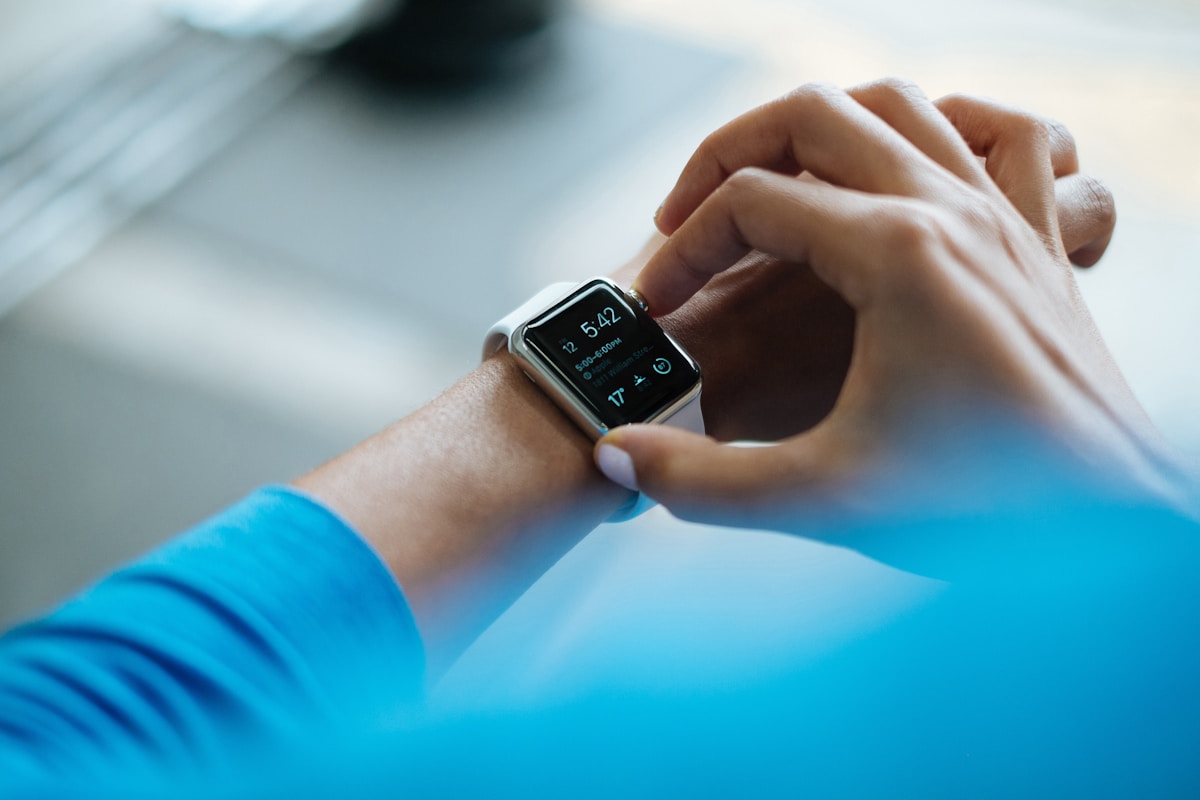
One of the most underutilized features in the Apple ecosystem is how seamlessly your Apple Watch communicates with your Mac. After 15 years of working with Apple products and 5 years of owning Apple Watch devices, I've discovered that this connection transforms how you interact with your computer. Let me walk you through every way your Apple Watch enhances your Mac experience.
The Foundation: Setting Up Apple Watch and Mac Integration
Before exploring what your Apple Watch can do with your Mac, you need to ensure proper setup. Your Apple Watch must be paired with your iPhone, and your Mac must be signed into the same iCloud account. This sounds obvious, but I've helped numerous clients whose Apple Watch features weren't working simply because they were signed into different Apple IDs.
The prerequisites for full Apple Watch and Mac integration are:
- Apple Watch Series 3 or later (Series 1 and 2 have limited functionality)
- Mac with watchOS 6 or later compatibility (2015 MacBook Pro or later)
- Both devices signed into the same iCloud account
- Bluetooth enabled on both devices
- Wi-Fi enabled on both devices

Unlock Your Mac with Apple Watch
The feature I recommend to every Mac user with an Apple Watch is "Unlock with Apple Watch." Imagine walking to your desk, opening your MacBook, and instead of typing your password, you're instantly logged in. Your Apple Watch senses proximity and authenticates you automatically.
How to Enable This Feature
- Open System Settings on your Mac (click the Apple menu > System Settings)
- Click "Touch ID & Password" (or "Face ID & Passcode" on supported Macs)
- Scroll down to find "Use your Apple Watch to unlock apps and your Mac"
- Toggle this option ON
- Confirm by entering your Mac password when prompted
My experience: In my office, I've enabled this feature on five Macs. The time savings add up—instead of typing a 12-character password 15-20 times daily, I just open my Mac and I'm in. Over a year, that's potentially hours of typing I didn't have to do.
How It Works Technically
Your Apple Watch communicates with your Mac using Bluetooth Low Energy (BLE) and Wi-Fi. When your Mac detects your Apple Watch is nearby (within 10-15 feet), it uses the secure Enclave processor on both devices to verify your identity without transmitting your actual password. This is the same technology that makes Apple Pay secure—your actual credentials never leave the devices.
Apple Pay on Your Mac
Another powerful integration is using Apple Pay for online purchases on your Mac. When you check out on websites that support Apple Pay, you can authorize the purchase with a double-click of your Apple Watch's side button instead of entering credit card information.
Setting Up Apple Pay on Your Mac
- Open System Settings > Wallet & Apple Pay
- Ensure your credit cards are properly set up on your iPhone in the Watch app
- On your Mac, when making a purchase, click the Apple Pay button
- A payment sheet appears—confirm on your Apple Watch
- Double-click the side button on your Watch to confirm
This feature works in Safari on macOS and provides an extra layer of security since purchases require physical confirmation via your Watch.
Handoff: Continue Your Work Across Devices
While Handoff is primarily known for iPhone-to-Mac transfers, your Apple Watch plays a subtle role in the Continuity ecosystem. When you start a task on one Apple device and continue on another, your Apple Watch helps authenticate and manage these transitions seamlessly.

Approve App Downloads and System Preferences
macOS can require additional authentication for installing apps, changing system settings, or accessing sensitive data. When configured, your Apple Watch can approve these requests with a double-click instead of requiring password entry on your Mac.
Configuring Apple Watch Approval
- Open System Settings on your Mac
- Click "Touch ID & Password" or "Face ID & Passcode"
- Look for "Use Apple Watch for app approvals" or similar option
- Toggle it ON
This is particularly useful in enterprise environments where password requirements are stringent, but you need quick access to change settings during presentations or client sessions.
Auto-Unlock: The Security Feature You Didn't Know Existed
Here's a feature most Apple users don't realize exists: when your Mac requires a password after being inactive, your Apple Watch can unlock it automatically if you're wearing the watch. This means:
- Walk away from your desk for a coffee break
- Mac locks automatically after 5 minutes of inactivity
- Return, and as long as your Watch is on your wrist, Mac unlocks without any action
To enable this, go to System Settings > Privacy & Security > "Require password after screen saver begins" and select "immediately." Then ensure your Watch is set up for automatic unlock.
Using Apple Watch as a Two-Factor Authentication Device
For services that support watchOS authentication apps (like Google Authenticator or Authy), your Apple Watch can display verification codes. While this isn't specifically Mac integration, many users find it convenient to glance at their Watch rather than reaching for their iPhone when logging into websites on their Mac.
Cutting the Cord: Cellular + Mac Combinations
If you have a cellular Apple Watch (GPS + Cellular model), you can use your Watch's connection to maintain Apple Watch features on your Mac when your iPhone isn't nearby. This is particularly useful for:
- Leaving your iPhone at home during workouts while still getting notifications on your Mac
- Working at a coffee shop where you only want to carry your Mac and Watch
- Situations where your iPhone battery is dead but you need to stay connected
Watch Mirroring: Control Your Watch from Your Mac
With watchOS 7 and later, you can mirror your Apple Watch display to your Mac via Xcode. This is primarily a developer feature for testing Watch apps, but it demonstrates the deeper integration possible between the platforms.
Limitations and Troubleshooting
Apple Watch and Mac integration isn't perfect. Here are common issues I help clients resolve:
Apple Watch Won't Unlock Mac
- Ensure "Unlock with Apple Watch" is enabled in Touch ID settings
- Check that your Watch is within range of your Mac (typically 10-15 feet)
- Restart Bluetooth on both devices
- Ensure watchOS is up to date on your Watch
- Your Watch must be unlocked and on your wrist for security
Apple Pay Not Working on Mac
- The card must be set up on your iPhone first
- The same card must be added to your Watch via the Watch app on iPhone
- Some banks don't support this feature—check with your institution
Battery Life Considerations
One concern I hear from clients is whether Apple Watch features drain battery faster. In my experience:
- Unlock with Apple Watch uses minimal additional battery—maybe 2-3% per day
- Apple Pay authentication draws negligible power
- The main battery impact comes from the Bluetooth and Wi-Fi connections staying active, which they already are
Privacy and Security Considerations
Your Apple Watch contains sensitive authentication data. Here are the security aspects to understand:
- Wrist detection: Your Watch must be on your wrist and unlocked to authorize Mac actions. This prevents unauthorized use if your Watch is stolen.
- Secure Enclave: Both devices use dedicated security hardware (Secure Enclave on Watch, T2 or Apple Silicon on Mac) for cryptographic operations.
- No data sharing: Your passwords and card numbers are never transmitted—only cryptographic tokens.
Which Apple Watch Models Work Best?
If you're buying an Apple Watch primarily for Mac integration, here's my recommendation hierarchy:
- Apple Watch Ultra 2: Best for professionals who need maximum battery (up to 72 hours) and the brightest display for glancing at authentication codes.
- Apple Watch Series 9: The sweet spot for most users—fast, reliable, and supports all Mac integration features.
- Apple Watch SE: Budget-friendly option that supports Unlock with Apple Watch and Apple Pay, though misses some health features.
- Apple Watch Series 3: Still functional but limited to 8.1GB storage and slower processor—can be sluggish with Mac features.
My Daily Apple Watch + Mac Workflow
Let me share exactly how I use these features in a typical day:
- 7:00 AM: Arrive at office, Apple Watch unlocks my MacBook Pro as I sit down
- 9:30 AM: Need to install new software—double-click Watch to approve instead of typing password
- 11:00 AM: Online purchase—Apple Pay via Watch confirms the transaction instantly
- 2:00 PM: Step out for lunch, Mac locks; return 20 minutes later, Watch auto-unlocks
- 4:30 PM: Quick browser purchase—Watch confirms without reaching for iPhone
This workflow has become so natural that I notice when someone doesn't have this setup—it feels archaic to type passwords manually.
Future of Apple Watch and Mac Integration
Apple continues to expand what Watch can do with Mac. Rumors suggest future versions might allow:
- More granular control over Mac apps via Watch interface
- Health data sync directly to the Health app on Mac
- Advanced gestures for controlling presentations and media
- Finder integration for file operations and organization
Conclusion
Apple Watch and Mac integration represents what's best about the Apple ecosystem: thoughtful features that make daily tasks easier without requiring extra thought. Whether it's the convenience of auto-unlock, the security of Apple Pay authentication, or the time saved by Watch approval for system changes, these integrations compound over time.
If you own an Apple Watch and a Mac, take 5 minutes today to enable these features. Once you experience unlocking your Mac with just proximity, you'll wonder how you ever managed without it.

Related Articles
Handoff: Moving Seamlessly Between Apple Devices
Start on one device, continue on another.